AI Anime Video Generator: A Beginner's Complete Guide
The Ultimate Guide to AI Anime Video Creation: Formulas, Workflows & Pro Tips 🪄
Welcome to the realm of inspiration! Have you ever looked at a breathtaking 2D illustration you've just generated and imagined the breeze catching the character’s hair, or the lighting dancing across their eyes? It’s time to break the dimension wall and set your anime fantasies in motion.
Creating stunning AI anime videos is no longer just for technical wizards. This guide will walk you through the standard workflow, the golden prompt formulas, and the crucial pitfalls to avoid—while sharing some smart ways to use AnividAI to make the process completely seamless.
1. The Standard Creation Workflow
A great AI video always starts with a solid foundation. Here is the typical step-by-step process you should follow:
Step 1: Prepare the Perfect Reference Image
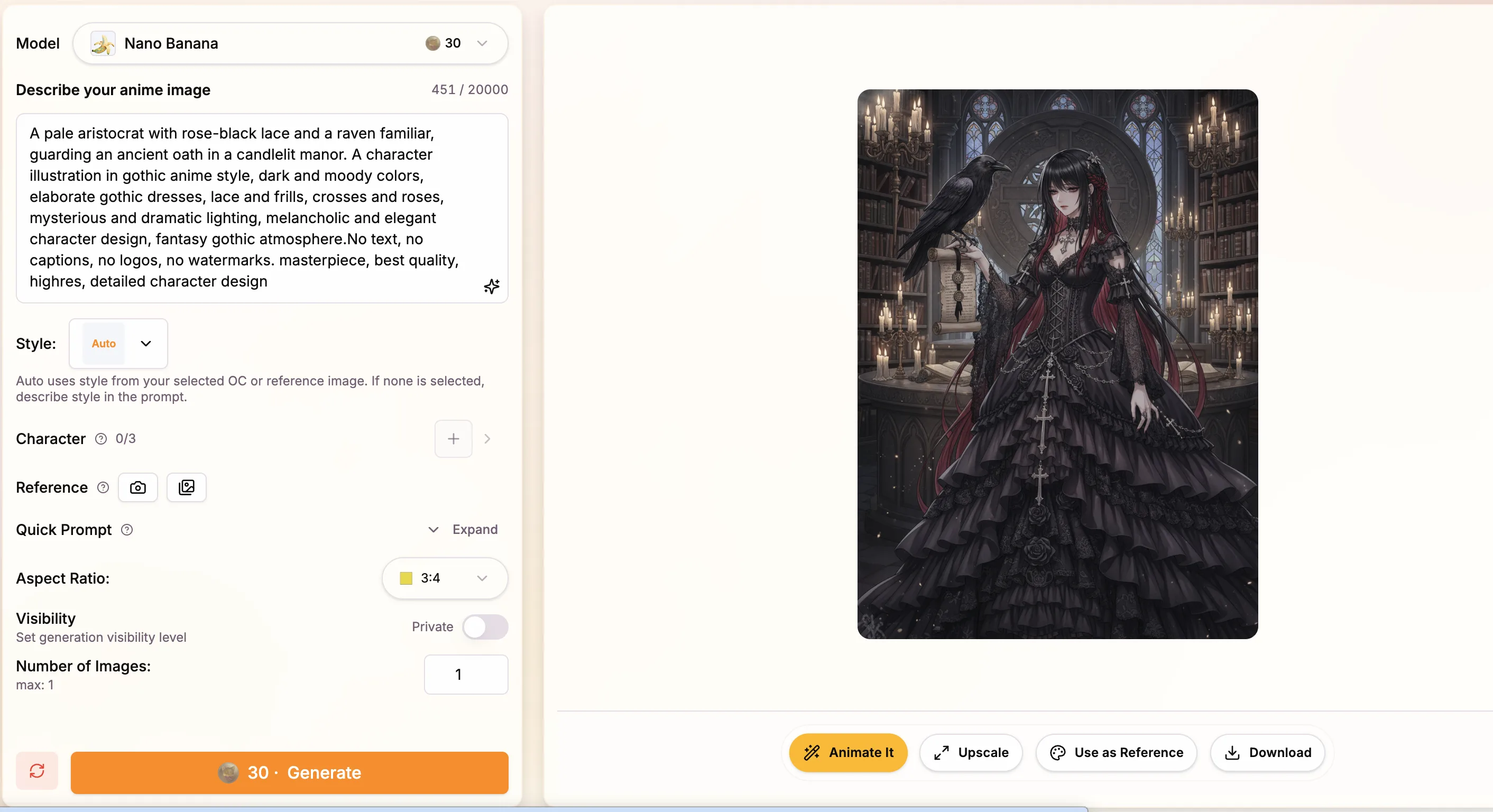
While text-to-video is powerful, image-to-video gives you absolute control over the art style and character design. Always start by generating or finding a high-quality illustration.
💡 AnividAI Pro Tip: Animating an image usually means a tedious cycle of downloading and re-uploading. To save time, use AnividAI's interconnected ecosystem. Whenever you generate a beautiful piece or find one in your Gallery, simply click "Send to Video". The image instantly becomes your video reference, keeping you fully immersed in your creative flow.
Step 2: Choose Your Control Mode
Depending on what you want to achieve, you need to tell the AI how strictly it should follow your reference:
- Atmosphere Reference: The AI uses your image for style and color, but completely reimagines the scene's movement based on your prompt.
- Start/End Frame Control: If you want the video to begin exactly as your illustration looks (e.g., a sleeping girl slowly waking up), this is the mode you need.
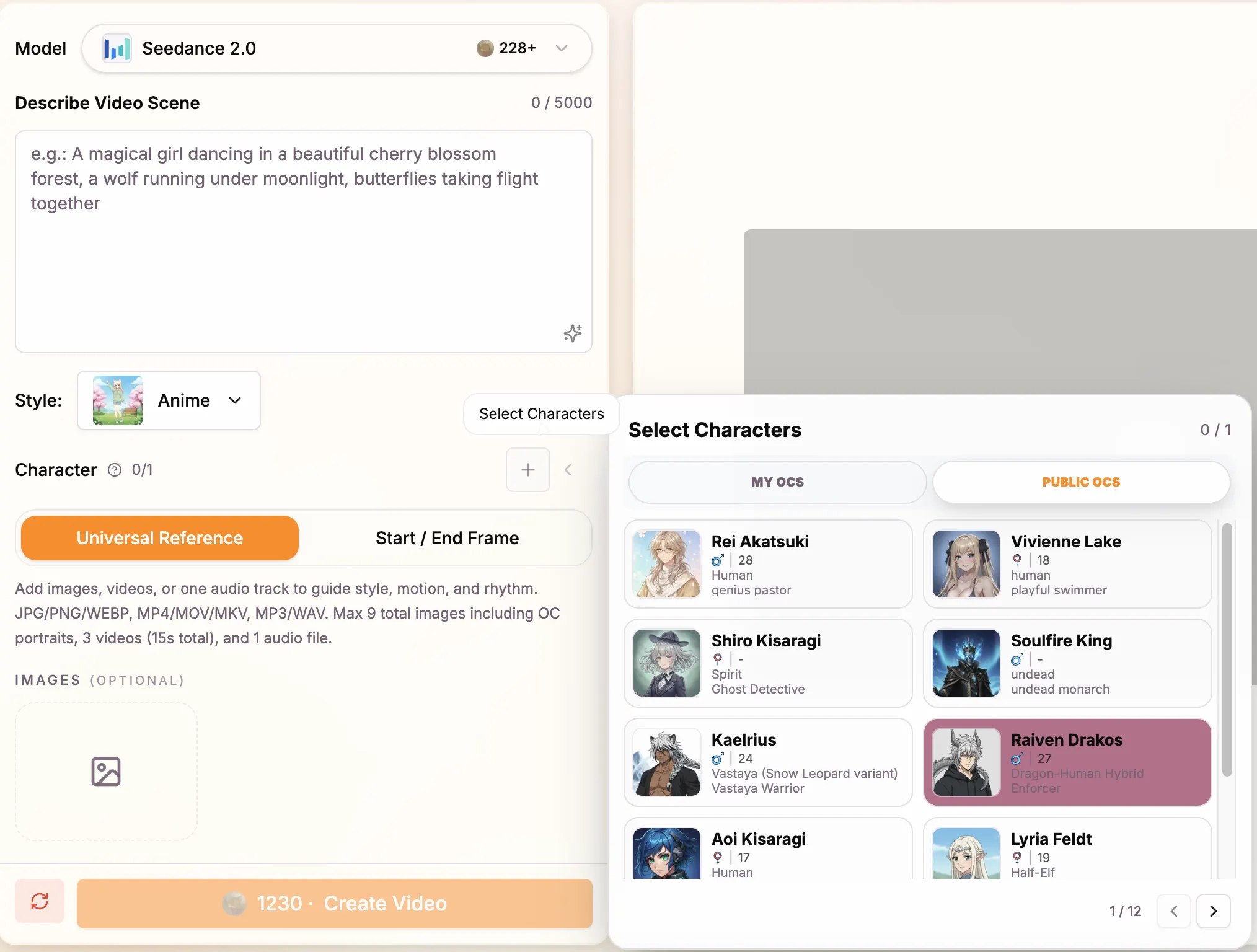
- Character Consistency (OCs): Keeping a character looking the same across different videos is notoriously hard. On AnividAI, using models like Seedance, you can simply load your saved Original Characters (OCs) directly into the video generator. The AI locks onto their face and outfits automatically!
Step 3: Match the Model to the Scene
Different AI models have different "personalities." Don't just stick to one!
- 🎬 Kling 3.0: Exceptional at smooth, narrative-driven shots and strict Start/End frame transitions.
- 👯 Seedance 2.0 & Fast: The ultimate tool for OC creators. It supports importing multiple reference images and characters, making it incredible for maintaining character consistency.
- 🎭 Hailuo 2.3: Craving subtle micro-expressions? Whether it's tears welling up or a gentle smile, Hailuo’s high-fidelity facial tracking is breathtaking.
- 🌌 Sora 2 / Veo 3.1: Best for grand, sweeping anime landscapes and complex camera movements (like soaring through clouds).
2. The Golden Prompt Formula
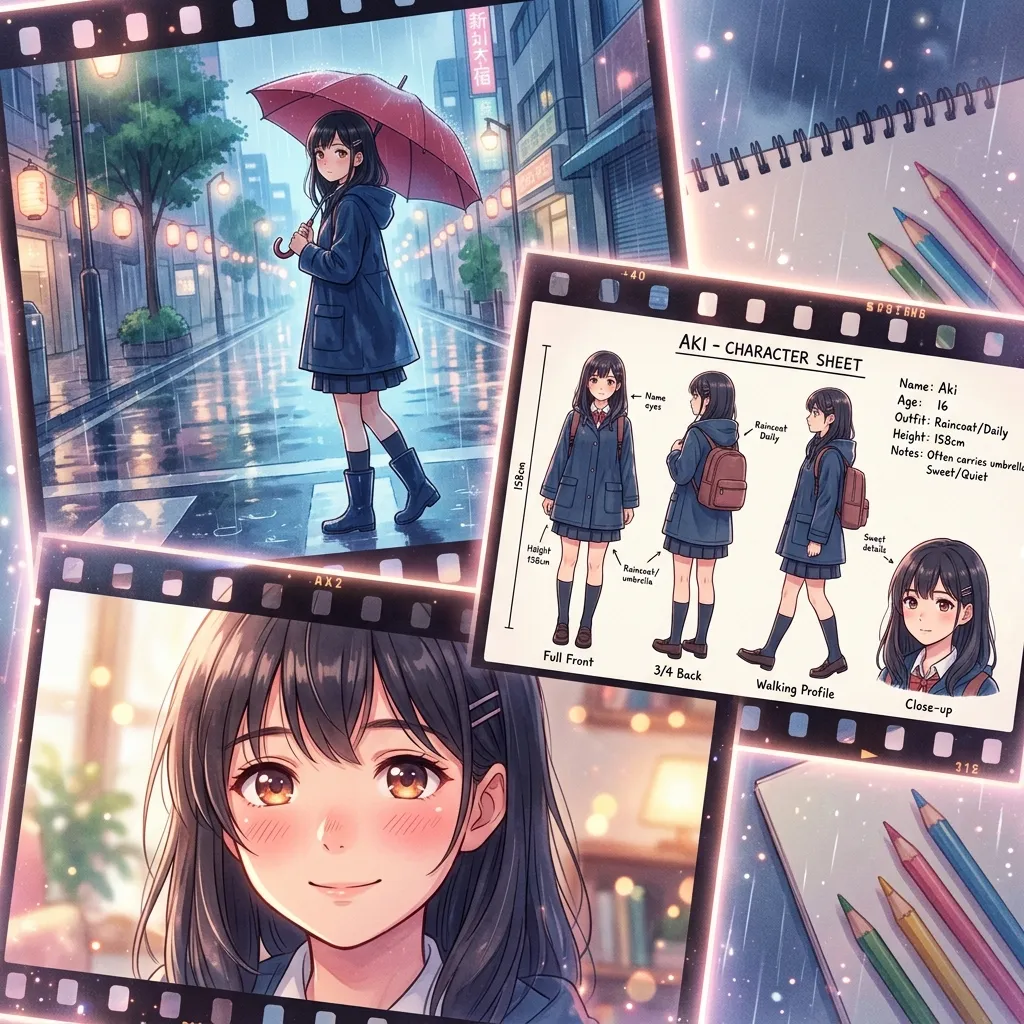
Writing a prompt for a video is like giving directions to a cinematographer. Unlike image prompts, video prompts need to describe time and motion. Remember this formula:
[Camera Work] + [Subject Description] + [Environment/Lighting] + [Specific Action] + [Atmosphere]
- ❌ The "Too Vague" Trap: "A cute girl dancing." (The AI will guess the details, often leading to chaotic results and morphing.)
- ✅ The Magic Spell: "Cinematic medium shot, a beautiful anime girl with long pink hair and a white dress. Warm golden hour sunlight filtering through cherry blossom trees. She is slowly spinning around, smiling gently to the camera. Dreamy atmosphere, soft depth of field, masterpiece."
3. 🚫 Pitfalls to Avoid (Do's and Don'ts)
Even the best directors make mistakes on set. Avoid these common rookie traps:
- The "Everything Everywhere" Action: Don't ask a character to "run, jump, and cast a magic fireball" in a single 5-second clip. Focus on one primary motion (e.g., "wind blowing through the skirt"). Micro-animations often carry more emotional weight than chaotic movements.
- Conflicting Image & Text: If your reference image shows a character sitting down, but your prompt says "flying in the sky," the AI will get confused and the anatomy will break. Your prompt should be a natural continuation or subtle tweak of the reference image.
- Contradictory Camera Moves: Don't request a
zoom inand apan leftsimultaneously. Keep your camera instructions pure and singular to avoid a shaky, dizzying shot. - Ignoring Aspect Ratios: Choose
16:9for cinematic stories and9:16for mobile formats (like TikTok or Reels). Using the wrong ratio on an uploaded portrait might aggressively crop your carefully designed character's head!
Action!
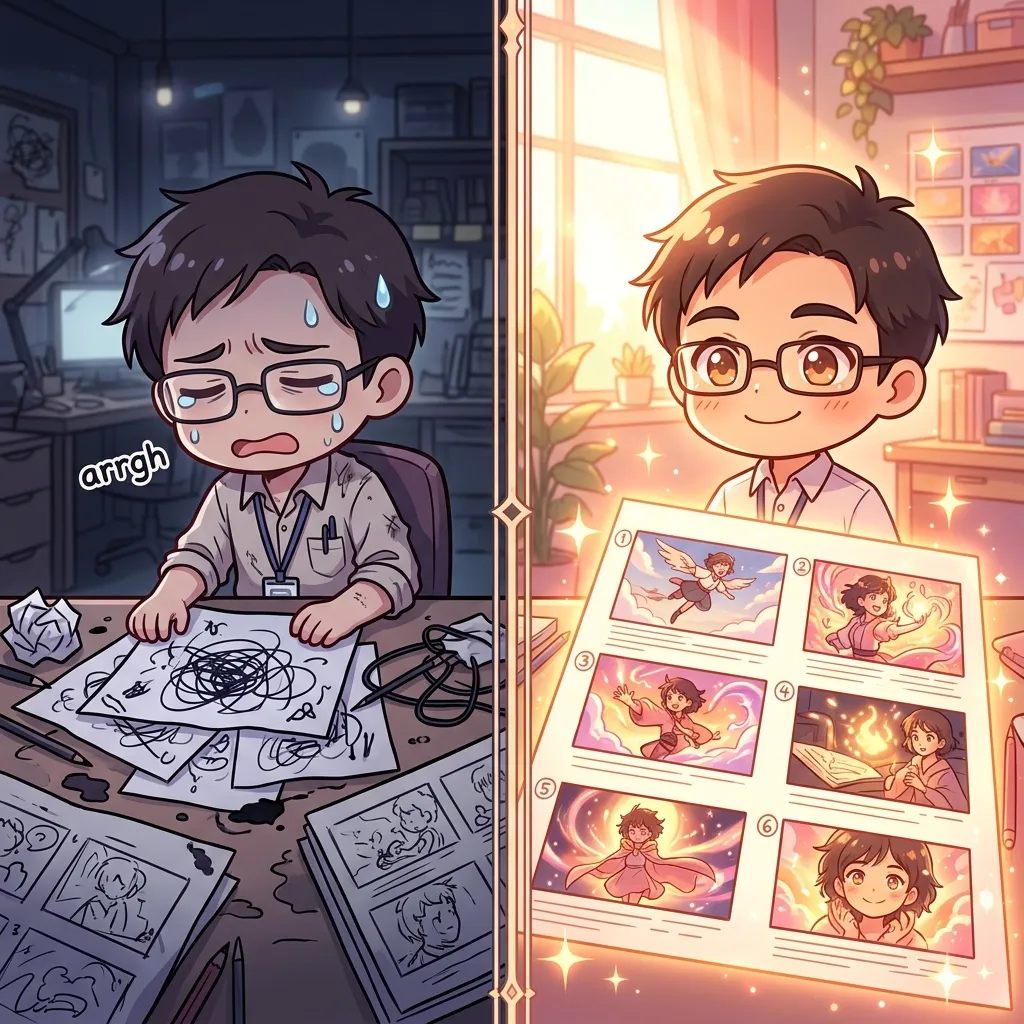
Creating AI anime videos takes a little patience and experimentation, but the results are pure magic. By mastering these formulas and utilizing a seamless workflow, you are well on your way to directing your own anime masterpiece.
Now, grab that illustration you're incredibly proud of, add a gentle breeze and some warm sunlight to your prompt, and call "Action!"
Read More
AI Story Generator: Create Illustrated Anime Stories Page by Page
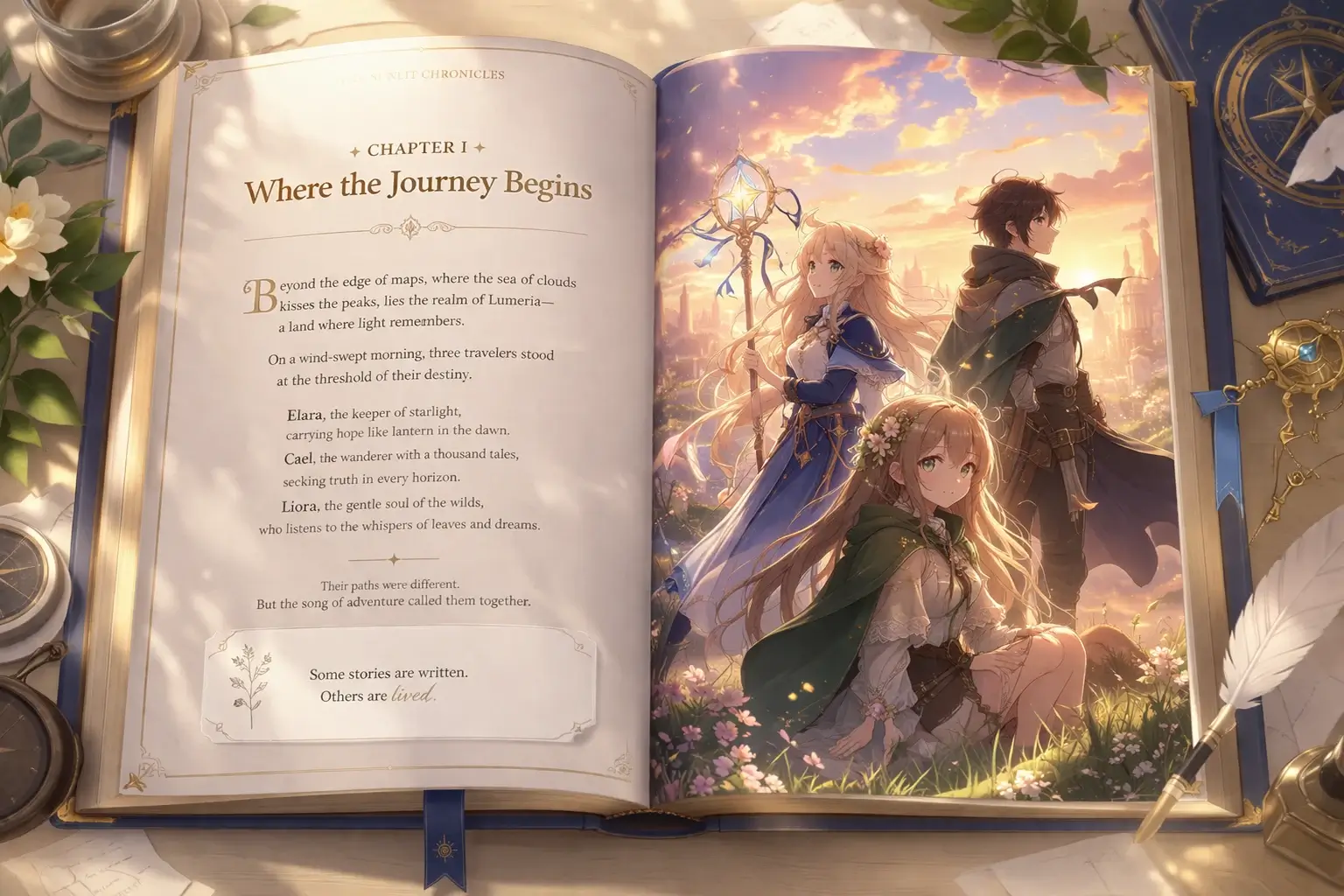
Learn how AnividAI's AI Story Generator helps you turn a premise into illustrated anime story pages with World, Genre, Language, Character Studio OCs, and optional video clips in a book-spread workbench.
Read More
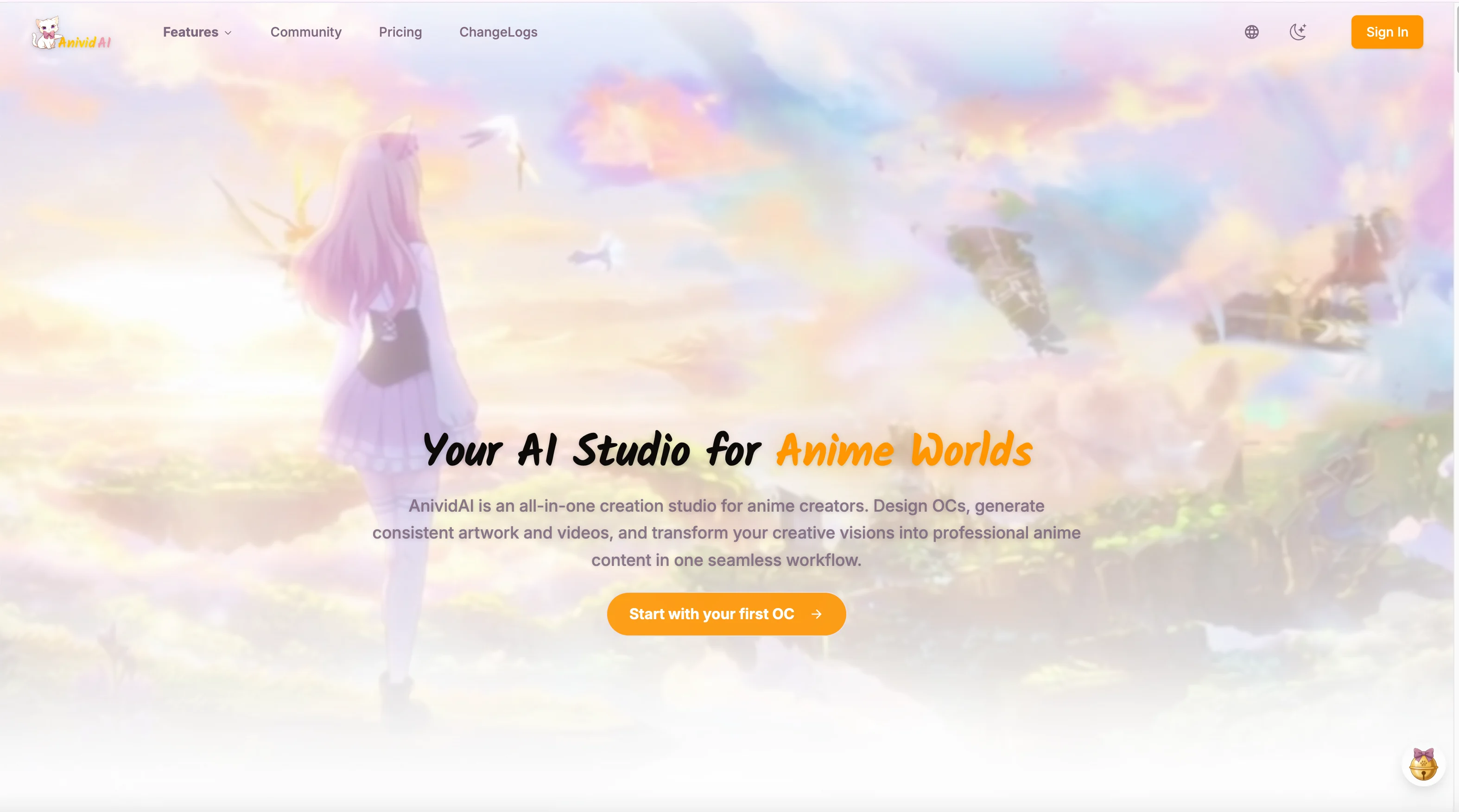
The Ultimate Guide to AnividAI: Your All-in-One AI Anime Studio for Creating OCs, Art, and Videos
Discover AnividAI - the complete AI-powered anime creation platform. Learn to create original characters (OCs), generate anime images and videos, chat with characters, and more. Features, pricing, and workflows explained.
Read More